Features
Notes
Notes have a required nonblank title, Markdown body, creation and edit timestamps, optional event date, pinned state, optional folder, and optional drawing. Reading and editing are separate modes, so opening a note does not modify it.
Editing uses an in-memory draft. Save applies the draft, while Cancel discards
it. Authored content changes update updatedAt; opening, closing, or moving a
note between folders does not.
The editor shows Markdown in one of three modes, chosen from a menu in its toolbar: Reading, Live Preview, and Source. It opens in Live Preview, which renders the note as it is written and exposes the Markdown source of the region holding the cursor. Switching modes rewrites nothing, moves no timestamp, and records no version, and there is no autosave: Save and Cancel mean exactly what they always have. See Content and Export for how a region is decided and what the cursor does.
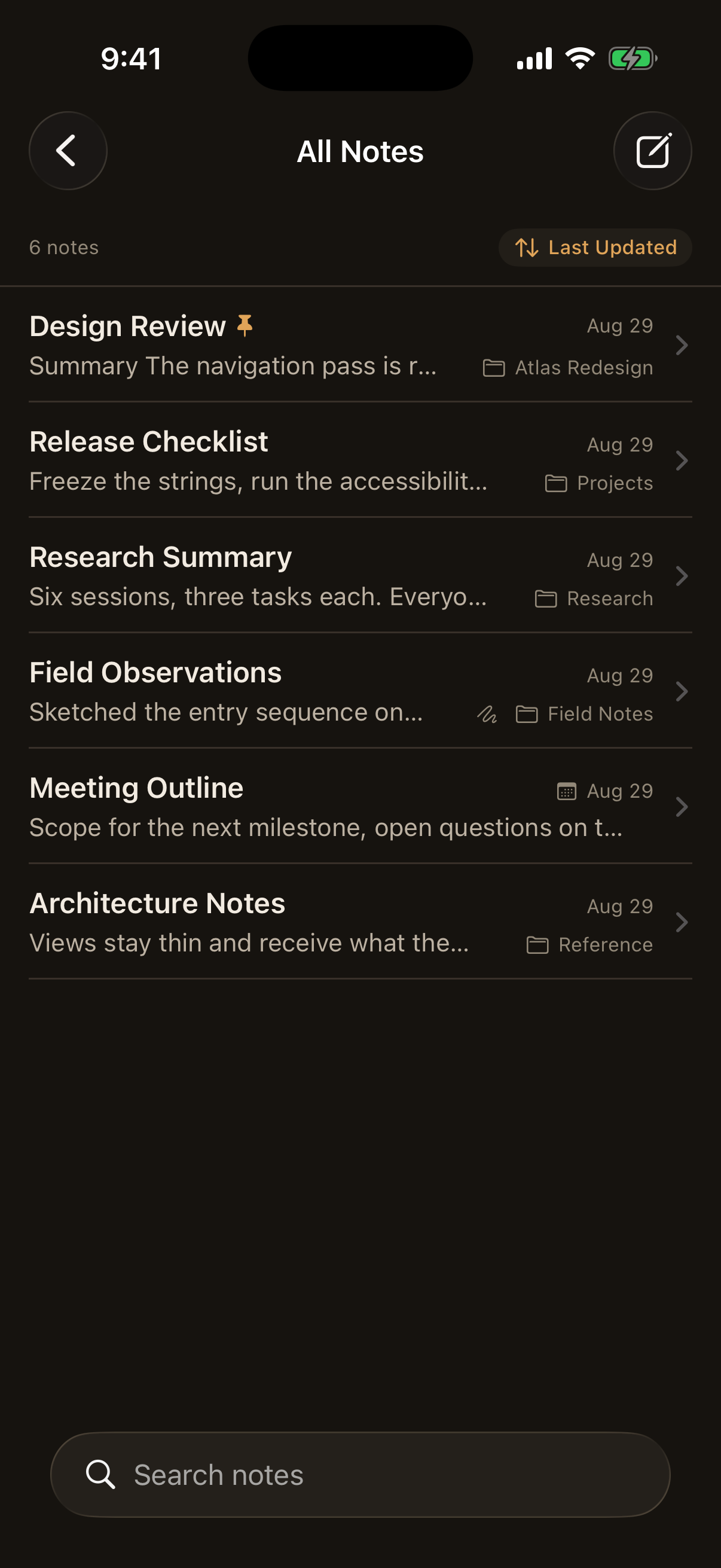
The list supports title and body substring search over the notes of the scope being browsed, Last Updated and Date Created ordering, and pinned-first grouping within either order. Searching inside a folder covers the notes filed in that folder rather than reaching into its subfolders, and the subfolders are left out of the results while a search is active. A strip above the list states how many notes are showing and which ordering is active, and opens the ordering menu in one tap.
Rows are compact: the title with its date alongside, then a short preview with the folder the note is filed in when the list mixes folders. At accessibility text sizes a row unstacks into plain lines so nothing is truncated.
Collapsible sections
Read mode treats a Markdown thematic break as a divider that can fold the content below it. Each divider owns the content up to the next divider, so collapsing one leaves the rest of the note alone, and anything written above the first divider always stays visible.
Collapsing changes what is on screen and nothing else. The stored Markdown is untouched, Source mode still shows every character including the breaks, the note's edit time does not move, no version is recorded, and copying, sharing, or exporting still carries the whole note. Sections start expanded every time a note is opened, and the collapsed state is not saved.
See Content and Export for which Markdown counts as a break.
Version history
Saving a change to an existing note keeps the version it replaces. Version History is reached from the note's toolbar menu, lists previous versions newest first, and opens each one read only before anything is restored.
Restoring makes a previous version current and keeps the version that was current until then, so a restore can itself be undone by restoring again. Nothing is removed from history.
A version records the authored text of the note: title, body, and event date. Creating a note records nothing, because there is no earlier state to recover. Saving without a change, cancelling, moving a note between folders, pinning it, and simply reading it all leave history untouched.
Drawings and attached files are current state rather than versioned content. Restoring a previous version changes the text and leaves the note's drawing and its files exactly as they are.
Library
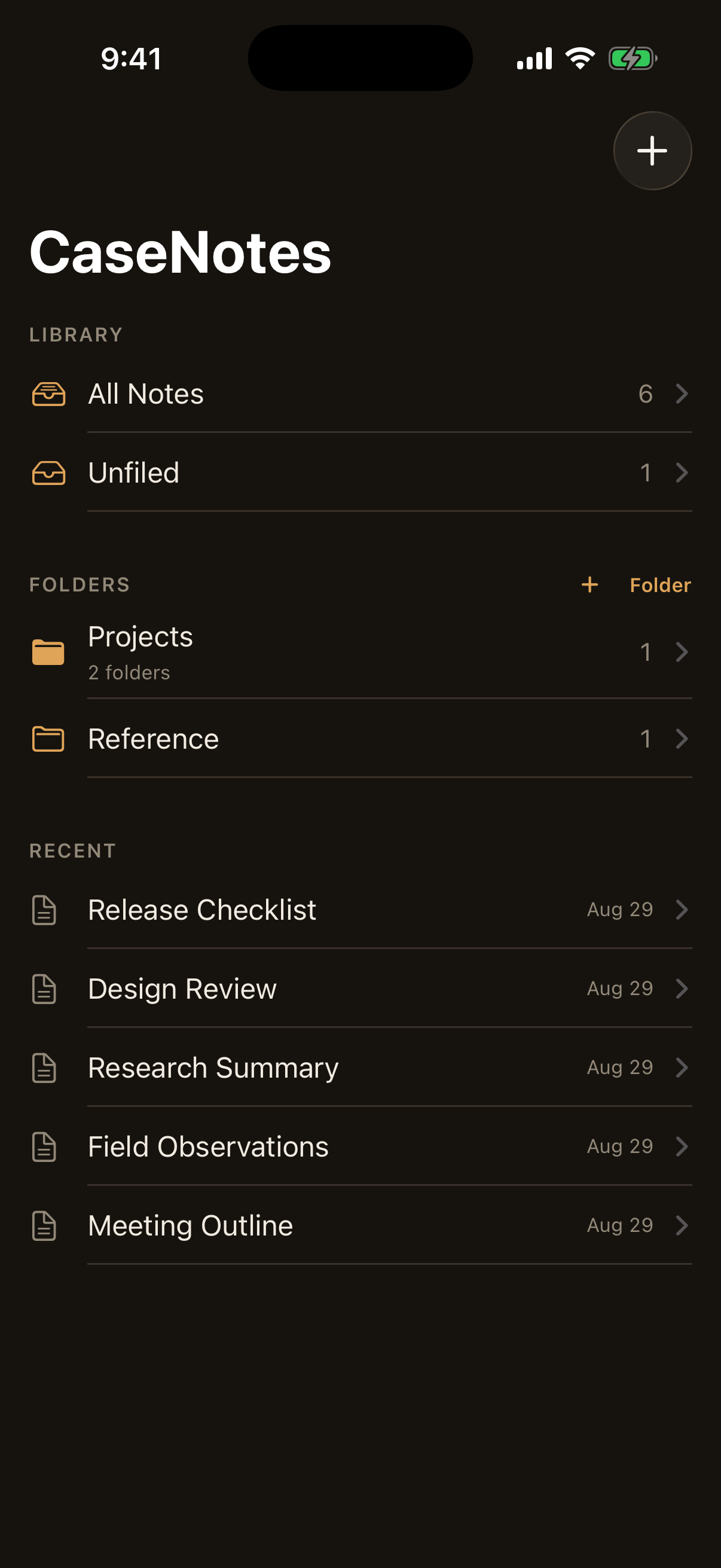
The root screen is the workspace navigator. Library holds the All Notes and Unfiled scopes, Folders holds the ones you made, and Recent lists the notes edited most recently so current work is one tap away.
Creation is available without leaving the screen: the toolbar offers New Note and New Folder, the Folders heading carries its own folder action, and a folder's context menu can start a note or a folder already inside it. Creating while browsing a folder puts the new note or folder in that exact folder, at whatever depth it sits.
Folders
Folders can be created, renamed, moved, and deleted. All Notes and Unfiled are explicit browsing scopes. A note belongs to at most one folder, or to none.
Folders can hold folders. A folder with no parent sits at the top level of the library, and opening a folder shows the folders inside it above the notes filed in it. Membership is direct at every level: a note filed in a subfolder belongs to that subfolder, so the count on a row and the contents of the screen it opens are always the same set. All Notes stays global and includes notes at any depth, and Unfiled still means a note with no folder at all.
Move Folder offers the library root and every folder except the one being moved and the folders inside it, so a folder can never be filed into itself or into its own subtree. Moving a folder takes its subfolders and notes along, and changes no note: not its text, not its edit time, and not its history. Renaming a folder likewise changes only that folder, and the paths shown for everything inside it follow automatically.
Deleting a folder deletes no writing and no subtree. The notes filed directly in it move to Unfiled, and the folders directly inside it move up one level, into the deleted folder's own parent, or to the top level when it had none. Anything deeper stays exactly where it is. The confirmation states both outcomes before anything happens.
Drawing
A note can hold one PencilKit drawing. The drawing editor owns an in-progress canvas, so Cancel discards changes and Done saves them. Saving a cleared canvas removes the drawing record. Merely opening a drawing does not rewrite it or change the note timestamp.
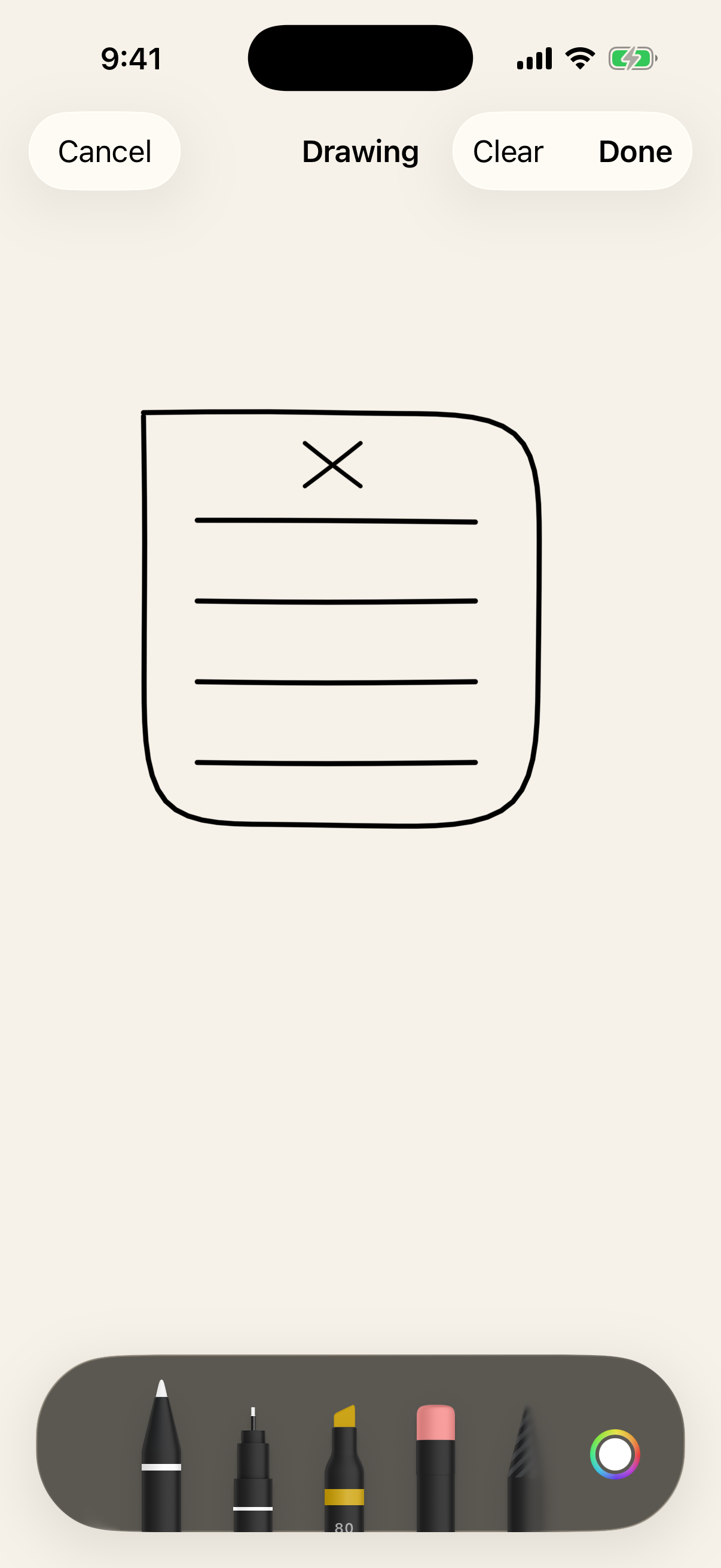
The canvas keeps a light paper ground in either app appearance, so ink looks the same while it is drawn and while it is read.
Attachments
A note can keep local files alongside its writing, such as a PDF or a Word document. The editor lists what the note holds, adds a file through the system document picker, and removes one with the list's delete action.
Attachments answer to Save and Cancel exactly as the text does. A file chosen while editing is copied into temporary storage and staged, not saved: Cancel discards the import and leaves nothing behind, and removing a file the note already has takes effect only when the edit is saved. A note that is created and then cancelled leaves neither a note nor a file.
Read mode lists the note's files after its content and drawing. Each row names the file, says what kind it is and how big, and opens it in the system document preview when tapped. Opening a file is a read: it does not change the note's edit time, and it records no version.
Adding or removing a file is a change to the note, so a save that changes the list updates the note's edit time. It is not a change to the note's writing, so it records no version. Version history stays text only.
Importable kinds are PDF, Word documents, plain text and Markdown, and PNG and JPEG images. What a file is comes from the file itself rather than from its name, so a document that was renamed is still recognized for what it is and a misleading extension cannot get an unsupported file in. Empty files and files that cannot be read are refused with an explanation rather than attached.
Files are copied into storage the app owns, so the note keeps working after the original is moved or deleted. Two files that arrived with the same name can both be kept: they are stored under separate names and shown under the names they came with. Deleting a note deletes its files. Deleting a folder deletes no notes, so it reaches no attachment either.
A file that has gone missing costs that file and nothing else. Its row says so and cannot be opened, and the rest of the note reads normally.
Placing a file in the writing
A file the note holds can also be placed inside the note's Markdown, so a photograph sits beside the paragraph it belongs to rather than only in a list at the end. Insert Attachment in the editor toolbar, and Insert Into Note beside the attachments list, offer the note's own files and a way to attach a new one. The chosen file is placed at the cursor, at the boundary of the block the cursor is in, so a heading or a fenced block is never cut in half.
A placement is a reference rather than a copy. The Markdown records the attachment's identity, which is what makes a placement survive a rename and stay valid however many times the file is placed. Source mode shows the reference as the text it is, Reading mode and Live Preview draw the file, and one file can be placed as many times as it is useful.
An image is drawn in the note at a bounded size with its aspect ratio kept and its name beneath it. Every other kind of file is a compact row naming it, and both open in the system document preview when tapped. CaseNotes renders no document format itself.
In Live Preview a placement carries three controls: move it up a block, move it down a block, and take it out of the note's text. Only its position in the Markdown changes, so Save and Cancel cover it exactly as they cover typing. Taking a placement out is not deleting the file: the attachment stays on the note and can be placed again. Deleting the file is the attachments list's own delete action.
Deleting a file the writing still refers to leaves that reference alone rather than rewriting the note. The reference then reads as an unavailable attachment, which says in words that the file is no longer part of the note, and the text around it is untouched. A reference to a file whose bytes have gone says the file is missing, in the same words a listed attachment uses.
Reference text written inside a code fence, inside inline code, or after a backslash stays the literal text it is. A reference only becomes an attachment where the note's own parse agrees that it is a block of its own.
Attachments are not included in Markdown or PDF exports, though a Markdown export carries the references verbatim because they are part of the authored source. See Content and Export.
Sharing and export
- Copy Note places the rendered Markdown document on the pasteboard without the CaseNotes footer, so a note pasted into other writing carries no wording the user did not write.
- Share Note sends Markdown text through the system share sheet.
- Export Markdown File creates a
.mddocument throughTransferable. - Export PDF File creates a
.pdfdocument through the same mechanism.
Exports include the title, optional event date, and body. App bookkeeping such as creation time, edit time, and pinned state is omitted.
Markdown and PDF answer different needs. Markdown hands over the source the note is stored as, keeps its syntax intact, and can be edited again in any editor. It notes in one line that a drawing exists, because a Markdown file cannot carry one. PDF hands over the note as a document: the Markdown is rendered rather than shown as syntax, the note's current drawing is included, and long notes paginate onto US Letter pages. Text in the PDF stays text, so it can be selected, searched, and printed.
A PDF always contains the complete note. Collapsing a section is something the reading view does, so what is folded on screen when the export runs makes no difference to the file, and a thematic break appears in the document as an ordinary rule rather than as a control.
The PDF is a light document in both app appearances, so a note exported while the app is in dark mode still arrives readable and ready to print.
Once a file has been shared or saved it belongs to wherever it was sent. CaseNotes has no control over it after that, and the file is not encrypted or password protected.